![Table Needs.png]](https://help.tableneeds.com/hs-fs/hubfs/Table%20Needs.png?height=40&name=Table%20Needs.png)

1. Locate the IP Address on the Card Reader
-
Wake the card reader screen.
-
Swipe up from the bottom.
-
Tap the middle circle button to open the app menu.
-
Select the “Sierra App” (the icon displays “TSYS BroadPOS”).
-
Locate the IP Address displayed on the screen.
Notes: If the IP Address shows 0.0.0.0, the card reader is not connected to the internet. The reader must be online before it can connect to the TN2 terminal.
2. Connect the Card Reader to the Terminal in TN2
-
On your iPad or POS station, open the Table Needs 2 app.
-
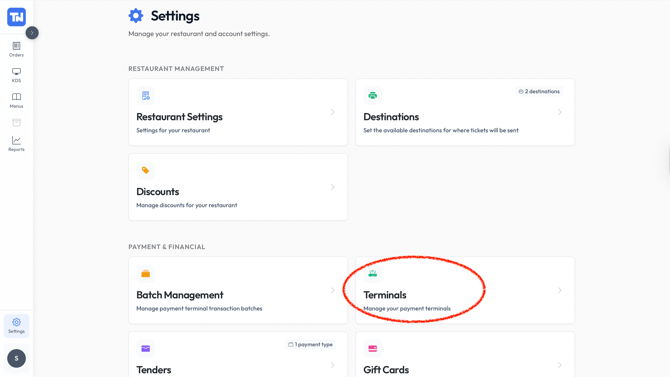
Navigate to Settings.
-
Under "Payment and Financial", select "Terminals".
-
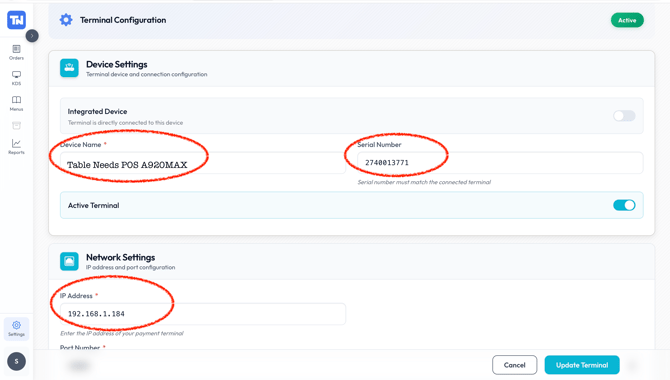
On this screen, enter your preferred Reader Name.
-
On the bottom left of the screen, enter the IP Address you obtained from the card reader.
-
Once all fields are filled in, the handheld card reader's serial number will populate on its own and should connect to your TN2 POS terminal.
Notes: Connection to a terminal must be done with an iOS or Android device using the app. Connection will not work on computers.