![Table Needs.png]](https://help.tableneeds.com/hs-fs/hubfs/Table%20Needs.png?height=40&name=Table%20Needs.png)
This article explains the difference between full and partial refunds in Table Needs 2 and walks you through how to process each one. Refunds can be issued for both cash and card transactions. Note: For card refunds, you will need both the card reader and the original card used for payment.
Full vs. Partial Refunds
Full Refund
A full refund returns the entire order amount to the customer.
Use this when the whole order is being canceled or returned.
Partial Refund
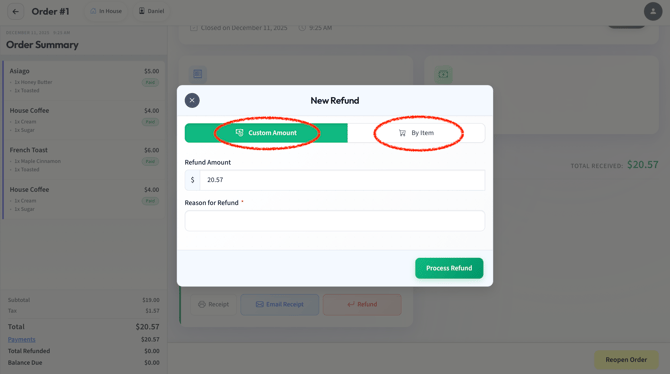
A partial refund returns only part of the payment, either by:
-
Refunding specific items
or -
Refunding a custom amount
Use this when only a portion of the order needs to be adjusted.
How to Locate a Closed Order
All refunds are performed from the Closed Orders tab.
-
Tap Closed Orders on your POS.
-
To locate the order, you can use:
-
Search Bar (magnifying glass):
Search by order name, order number, phone number, or dining method. -
“All” Filter:
Tap All, then use the calendar to select the specific day you want to review.
-
-
When you find the order, tap to open the order details.
How to Issue a Refund
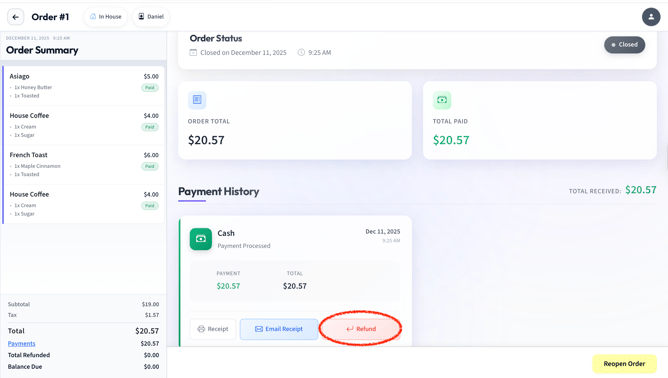
Once the closed order is open:
-
Tap Refund at the bottom center of your screen.
-
Select your refund option:
-
Refund by Amount (enter a custom amount)
-
Refund by Items (choose specific items to refund)
-
-
If the order is still open (for example, partially paid orders):
-
Tap Payments in the Totals section.
-
After processing a refund, the refunded amount may still show as due.
-
To close out the order without taking another payment, tap the three vertical dots button and select Zero Out.
-
-
Follow the on-screen prompts to complete the refund process.
Card Refunds
-
You must have the card reader connected.
-
The customer must provide the same card used for the original purchase.
-
Once processed, the order will automatically reopen in the system.
Cash Refunds
-
No card reader is required.
-
Once processed, the order will automatically reopen. To close out the order without taking another payment, tap the three vertical dots button and select Zero Out.