![Table Needs.png]](https://help.tableneeds.com/hs-fs/hubfs/Table%20Needs.png?height=40&name=Table%20Needs.png)
Managing Tax Rates
To create or modify a tax rate, start by navigating to the Menu Management tab located on the left-hand side of your screen.
-
Select the Taxes option — the last button within this section.
-
On the Taxes page, you will see two tabs: Tax Groups and Taxes.
Tax Groups allow you to streamline tax management, especially if your business operates across multiple locations with different tax rates. Here, you can also determine which menu items each tax rate applies to.
The Taxes tab is where you set up your desired tax rate, assign it to the appropriate tax group, and specify whether the tax rate is additive or inclusive.
An additive tax is added on top of the item’s price at checkout. For example, if a menu item is $10 and the tax rate is 10%, the total charge will be $11.
An inclusive tax, on the other hand, is already built into the listed price. In this case, a $10 menu item already includes the 10% tax, meaning the total remains $10.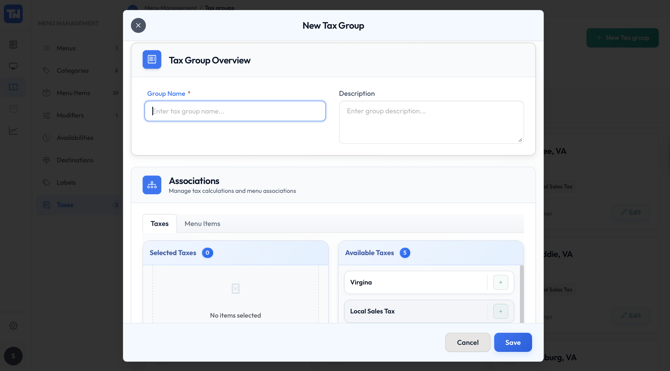 Once you’ve entered all the necessary information, click Save to apply your changes. Your new or updated tax rate will now be active and automatically applied based on the settings and associations you’ve configured.