![Table Needs.png]](https://help.tableneeds.com/hs-fs/hubfs/Table%20Needs.png?height=40&name=Table%20Needs.png)
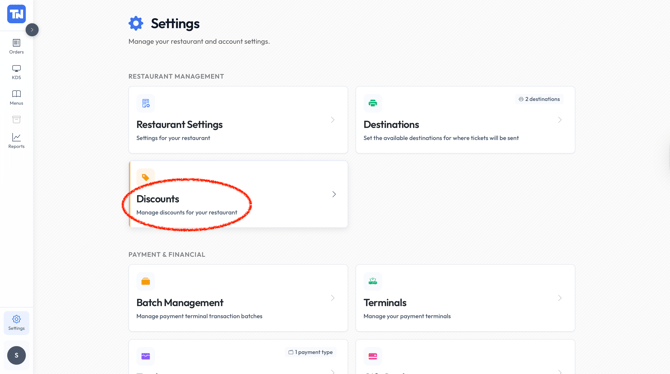
Locating the Discounts Section
-
Open the Table Needs 2 app.
-
Navigate to the Settings tab.
Under Restaurant Management, select Discounts.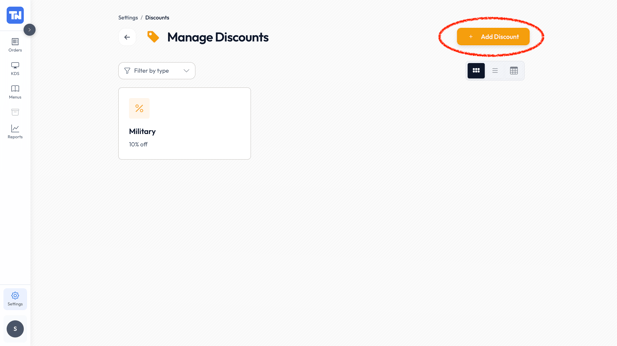
Here, you'll find your list of existing discounts and the option to create new ones.
Creating a New Discount
-
Tap the “Add Discount” button.
A new page will open with several configuration options.
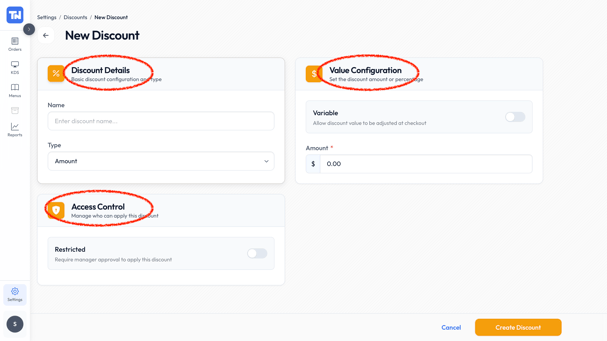
Configuring Your Discount
The discount creation page is divided into helpful sections:
1. Top Left: Discount Name & Type
-
Name: Create a clear, recognizable name for the discount (e.g., Happy Hour 10%, Manager Comp, $5 Off Promo).
-
Type: Choose whether this discount will be:
-
Percentage (% Off)
-
Amount ($ Off)
-
2. Top Right: Discount Value
-
Enter the value of the discount.
-
For percentage discounts—enter the percentage (e.g., 10 for 10%).
-
For amount discounts—enter the dollar value (e.g., 5 for $5 off).
-
3. Bottom Left: Access Control (Manager Lock)
-
Choose whether this discount should be locked.
-
If enabled, only employees with a Manager role will be able to apply this discount.
-
This is useful for preventing misuse of high-value or sensitive discounts.
Finalizing the Discount
Once all fields are set, save your new discount. It will now appear in your list of discounts and can be applied during order checkout.