![Table Needs.png]](https://help.tableneeds.com/hs-fs/hubfs/Table%20Needs.png?height=40&name=Table%20Needs.png)
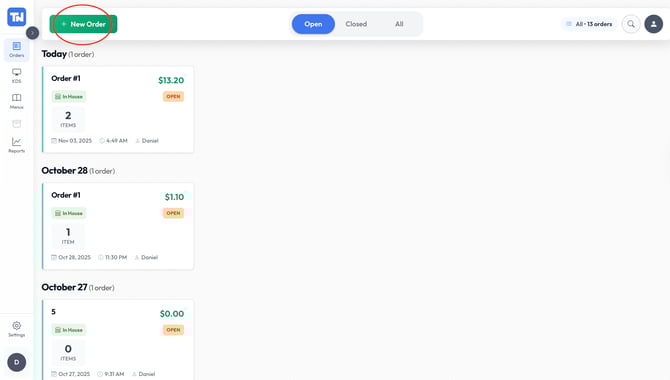
First, we will start on the Order tab of the point of sale. To begin the general flow of an order, we will select the “New Order ” in the top left corner of your screen.
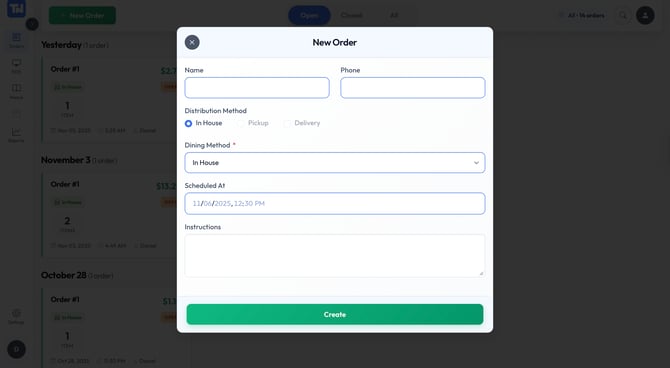
On the next screen, you’ll see a default view for entering customer information, such as name, phone number, and dining method. Most businesses find this default screen useful; however, if it doesn’t suit your workflow, you can disable it in your settings. You can also bypass this screen and click "create" without having to submit any customer information.
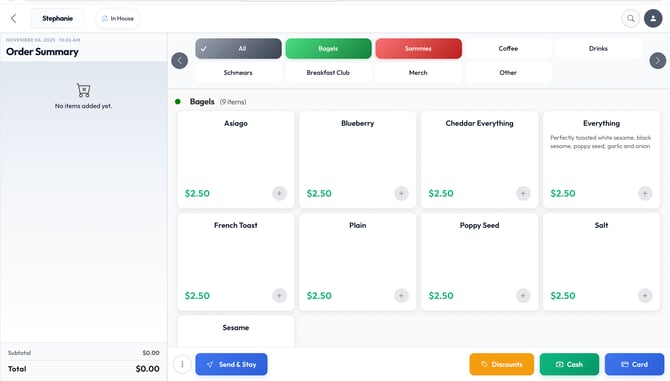
After entering the customer’s information or bypassing this screen, you’ll be directed to the POS menu. On this screen, you can take the customer’s order and process their payment. The customer’s name and dining method are displayed in the top-left corner. Menu categories appear across the top of the screen, with the corresponding items shown beneath each category. The order summary is displayed on the left side, and payment method options are located in the bottom-right corner for completing the transaction.
Once the order has been entered, select the customer’s payment method to process the transaction. After the payment is completed, the order will be successfully submitted.