![Table Needs.png]](https://help.tableneeds.com/hs-fs/hubfs/Table%20Needs.png?height=40&name=Table%20Needs.png)
Why Use Tenders?
Not all payments are processed through the POS card reader. Tenders give you a simple way to record other payment types while keeping your reporting clean and consistent. Tender payments will appear in reports but will not appear in your batches at the end of the day. Batch management only collects card payments.
Examples of custom tenders include:
-
Check
-
Cash App
-
Venmo
How to Create a Tender
-
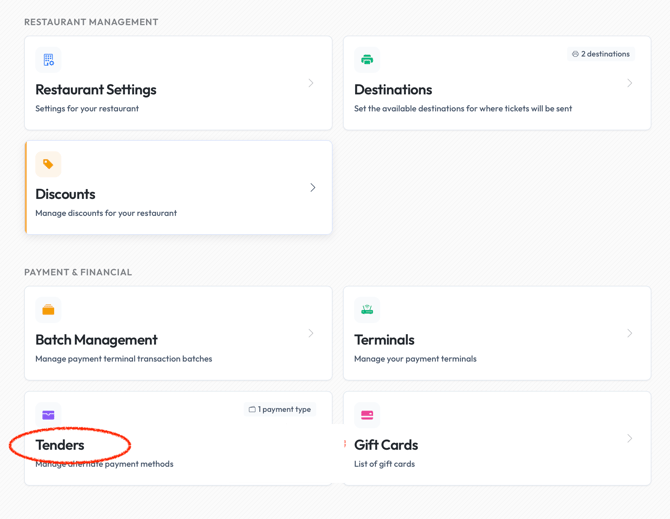
Go to Settings.
-
Select Payment & Financial.
-
Tap Tenders.
-
Create a new tender and enter the name (e.g., “Check,” “CashApp,” etc.).
-
Save your changes.
How to Use a Tender at Checkout
When you're ready to record a transaction using one of your custom tenders:
-
Begin the order as usual.
-
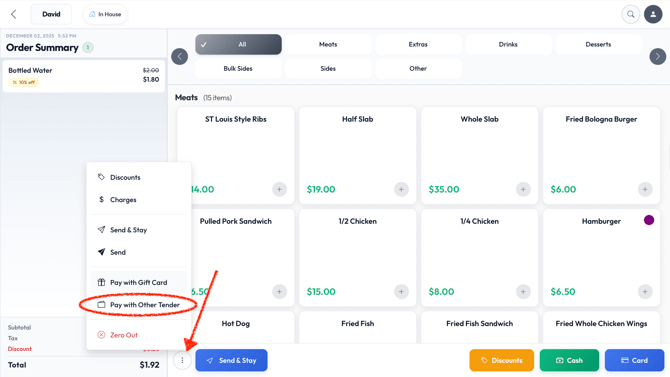
At the checkout screen, look for the three-circle button located at the bottom left of the screen.
-
Select the tender you created (e.g., “Check”).
-
Complete the order to properly record the payment.
Why This Matters
Using Tenders helps you:
-
Keep accurate sales reporting
-
Track all forms of payment easily
-
Ensure no transaction goes unrecorded